
Change Image DPI
to 300 for journal figures
Check the DPI and print size of any figure, set it to 300, 600 or 1000 DPI without touching the pixels, or resize it to a journal column width. Download PNG, JPEG or TIFF.
- Free, no sign-up
- Lossless DPI change for PNG and JPEG
- TIFF export for submission portals
- Runs in your browser: nothing is uploaded
Check or change image DPI
Drop a PNG, JPEG or WebP figure here to see its DPI and print size, then set 300, 600 or any DPI.
Processed in your browser. Files are never uploaded.
What DPI means for a journal figure
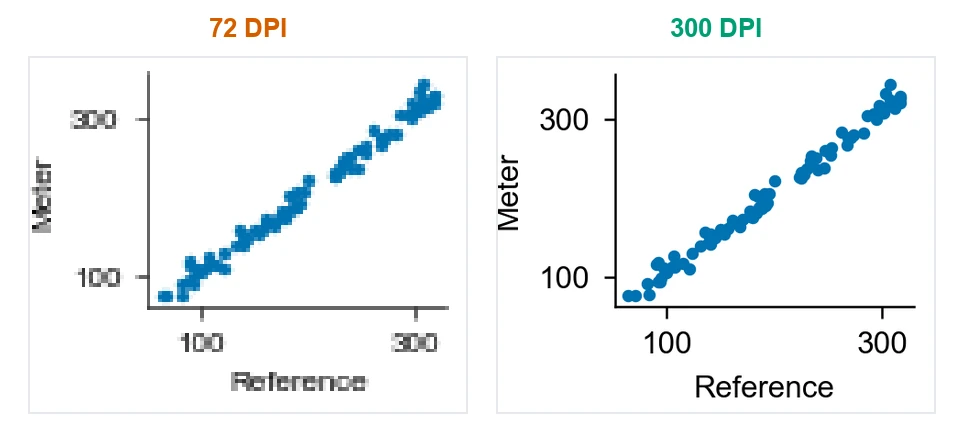
The same plot exported at 72 DPI and at 300 DPI, both shown at the same printed size. At 72 DPI the text and markers are built from a few pixels and print blurred; at 300 DPI edges stay sharp. This is why journals set a minimum resolution, and why the pixel count matters more than the DPI label.
DPI is a label, pixels are the image
DPI (dots per inch, often used interchangeably with PPI) is a number stored in the file that says how many pixels to print per inch. A 3000-pixel-wide image labelled 300 DPI prints 10 inches wide; labelled 72 DPI, the same pixels print 41.7 inches wide. The image itself is identical.
That is why changing only the DPI value never makes an image sharper or blurrier. It changes the print size.
What journals actually check
Journals ask for a minimum DPI at the final printed size. A figure meets 300 DPI for a single column of about 89 mm when it is at least about 1050 pixels wide, whatever DPI value the file claims.
Many submission systems also read the stored DPI value and reject files labelled 72 DPI, even when there are plenty of pixels. In that case, changing the label to 300 is all you need.
When to resample
If the image has fewer pixels than the column width needs, the honest fix is to export the figure again from its source (R, Python, Prism, Illustrator) at the right size and DPI. Upscaling with any tool adds pixels but no detail.
Downsampling a very large image to the column width is fine, and it keeps files small enough for submission portals.
PNG, TIFF or vector?
For plots and diagrams, a vector PDF, EPS or SVG is resolution-independent and always preferred when the journal accepts it. For raster images, TIFF and PNG are lossless; avoid JPEG for figures with text because compression blurs the edges of letters and lines.
Typical DPI requirements for journal figures
Most publishers group figures into three types, with minimum resolutions at the final printed size. These are common values (for example in Elsevier’s artwork guidelines); always check your journal’s instructions for authors.
| Figure type | Minimum |
|---|---|
| Photographs, micrographs, gels (halftone)Color or grayscale images with no text. | 300 DPI |
| Images with text or lines (combination)Annotated micrographs, panels with labels. | 500–600 DPI |
| Graphs, charts, diagrams (line art)Black-and-white or flat-color plots. Vector PDF or EPS is better still. | 1000–1200 DPI |
| Final figure width | at 300 DPI | at 600 DPI |
|---|---|---|
| Single column, 89 mm | 1051 px | 2102 px |
| 1.5 column, 140 mm | 1654 px | 3307 px |
| Double column, 183 mm | 2161 px | 4323 px |
Minimum pixel width = width in mm ÷ 25.4 × DPI.
Making the figure itself? FigCanvas exports plots and diagrams as vector SVG and 300 DPI PDF, so resolution is never the problem. See the export formats guide for TIFF, EPS and 600 DPI files.
Image DPI FAQs
Open the image in the tool above, choose 300 DPI and keep "Change DPI only" selected, then download. For PNG and JPEG files in the same format, only the DPI field in the file header is rewritten, so the pixels and the quality are exactly the same.
Changing only the DPI value does not touch the pixels, so quality is unchanged. Resizing (resampling) does change the pixels: shrinking is safe, while enlarging adds no real detail.
Drop the image into the tool. It shows the pixel dimensions, the DPI stored in the file (from the PNG pHYs chunk, or the JPEG JFIF or EXIF header) and the resulting print width. If no DPI is stored, most software assumes 72 or 96.
Typical minimums are 300 DPI for photographs and micrographs, 500 to 600 DPI for images that combine pictures with text or lines, and 1000 to 1200 DPI for line art such as graphs, all measured at the final printed size. Requirements differ between publishers, so check your journal’s artwork guidelines.
Multiply the print width in inches by the DPI. A single-column figure of 89 mm (3.5 in) needs about 1051 pixels at 300 DPI; a double-column figure of 183 mm (7.2 in) needs about 2161 pixels.
Yes. Choose TIFF as the output format. The tool writes an uncompressed RGB TIFF with the DPI you set. Transparent areas become white, since journal production systems often mishandle transparency in TIFF.
PPI (pixels per inch) describes a digital image or screen; DPI (dots per inch) describes how densely a printer places ink dots. The resolution value stored in an image file is really PPI, but most software and journals call it DPI. When a journal asks for 300 DPI, it means 300 image pixels per inch at the printed size.
In Photoshop, open Image > Image Size, untick Resample and set Resolution to 300. In macOS Preview, open Tools > Adjust Size, untick Resample image and set the resolution. In GIMP, use Image > Print Size. With resampling off, only the DPI value changes, which is what the free FigCanvas DPI converter does in the browser without installing anything.
Screenshots, PowerPoint exports and many web tools save images labelled 72 or 96 DPI, and submission systems read that label. If the image has enough pixels for the printed width (for example 1051 pixels for an 89 mm column at 300 DPI), changing the label to 300 is enough; if not, export the figure again at a higher resolution.
No. Reading, converting and saving all happen in your browser, so unpublished figures never leave your computer.
More AI tools for scientific figures
View all tools →Scientific Color Palette Generator
Okabe-Ito, Viridis, ColorBrewer and Nature, Science, Cell and PNAS palettes for plots, diagrams and multi-panel figures.
Open tool →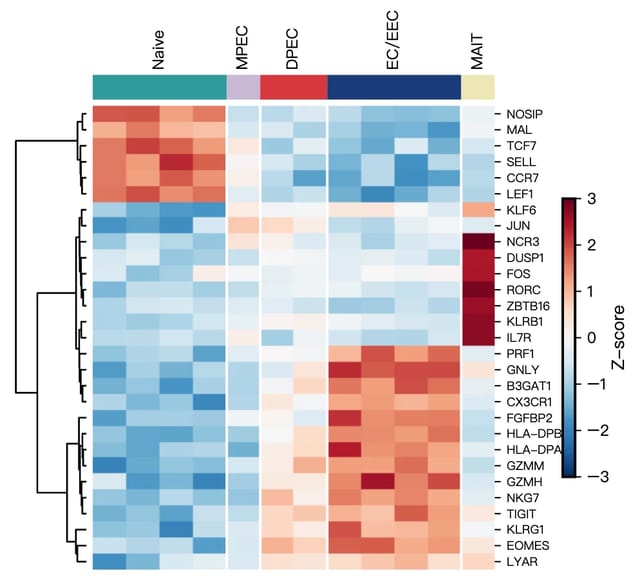
Scientific Data Visualization
Heatmaps, PCA, violin and bar charts for researchers, generated from CSV or Excel data.
Open tool →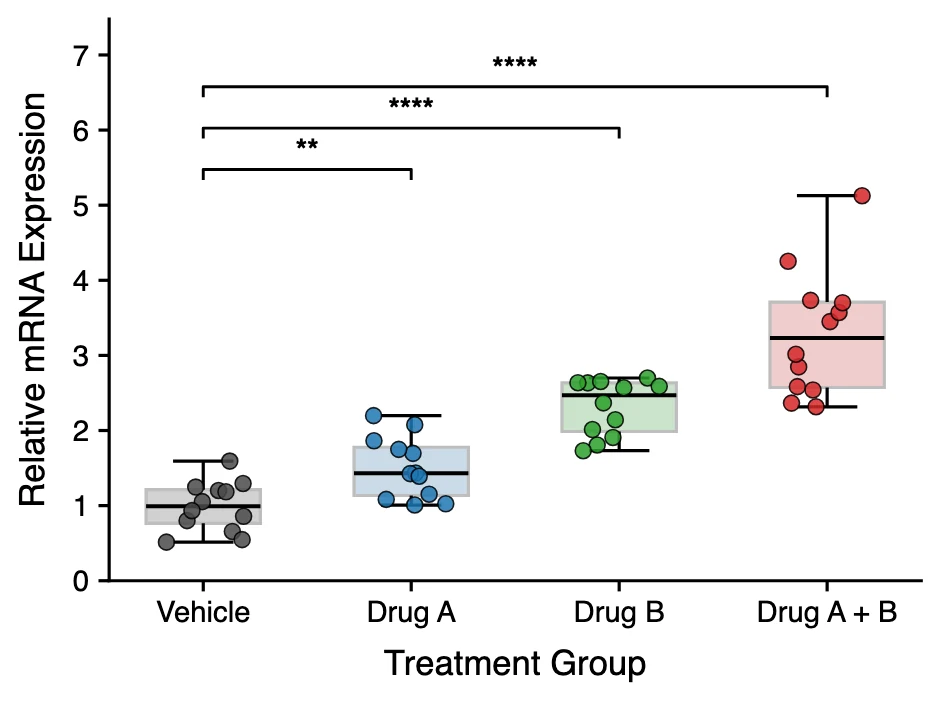
Box Plot Maker
Box and whisker plots with individual data points and significance brackets computed from your data.
Open tool →